
Adding hand-drawn elements to an image with a pen
*This feature is available only to customers who have subscribed to the RICOH360 Business Package or the RICOH360 Business Package Type S.
You can draw on images with a pen.
1. Log in to RICOH360 (web version).
2. Click the thumbnail of the photo you want to hand-draw with a pen in the photo/video list or album displayed on the top page.
3. Click the following button from the buttons at the bottom of the viewer.

You can add hand-drawn elements with the set color and thickness, or erase hand-drawn elements with the set thickness.
When the pen function is selected, you can draw with the set color and thickness.

The line thickness can be set using the following slider.
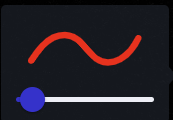
When the eraser function is selected, you can erase hand-drawn elements with the set thickness.

The eraser thickness can be set using the following slider.
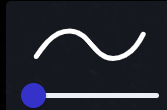
Click this button to undo one stroke of drawing performed in the edit mode.

Click this button to redo one stroke of drawing undone in the edit mode.

Note:
- The original image data is not overwritten with the hand-drawn elements added.
- Even if you download the image, it does not include the hand-drawn elements.
- Hand-drawn elements cannot be added to videos.
- When sharing a link to an image with hand-drawn elements added, only members within the team can view the hand-drawn elements.
- If an image with hand-drawn elements added is registered in an album or at a shooting location in a project, the same hand-drawn elements are added to those images as well.
Hiding hand-drawn elements
1. Log in to RICOH360 (web version).
2. Click the thumbnail of the photo with hand-drawn elements added in the photo/video list or album displayed on the top page.
3. Click the following “Display OFF” button.

Note:
- Click the following “Display ON” button to display hand-drawn elements again.
