
Set the visibility for images uploaded to RICOH360 Cloud
Necessary preparations
You can easily generate a URL (sharing link) to share your uploaded 360-degree images.
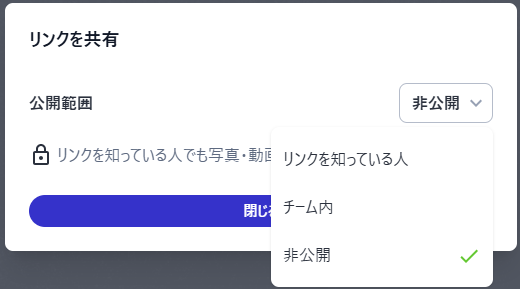
How to Select Visibility
Please select from the options below based on your intended use. Important Notes
- When you want to share with external customers… [Anyone with the link]
- Anyone with the link can view the content
- Even customers who do not use RICOH360 can view the content
- When you want to share only with your team or relevant parties… [Within Team]
- Only Team Members of the same RICOH360 team can view it
- When you do not want to share with anyone… [Private (Default)]
- No link will be generated
Important Notes
- “Anyone with the link” is effectively public.
Please handle the URL with care, as anyone can view it once it is shared.
- Do not copy and paste the URL displayed in your browser’s address bar.
Be sure to use a link generated following the procedure described below.
- Information from the “Pen” and “Notes” features is not shared.
Procedure How to Check the Sharing Status
- Access RICOH360 (app2.ricoh360.com/login) using a PC browser and log in
- Click the Team Name in the upper-left corner of the screen and select the target team
- Click the image you want to share (*Multiple selections are not allowed)
The screen will switch to view mode - Click [Share Link] in the upper-right corner of the screen
- Click the drop-down menu to the right of “Visibility” and select the Visibility [Anyone with the link / Team Members only / Private]
- Click [Copy Link]
The link (URL) will be copied to your clipboard; please paste it where needed (e.g., in a browser or email) to use it.
How to Tell the Public Status
On the list view, you can check the public status using the icon in the upper-right corner of the thumbnail image.
[Private]... No icon
[Anyone with the link]… The icon shown below

[Team Members]… The icon shown below

Supplementary Information