
Viewing images saved in the RICOH360 app
*Please note that the photos displayed on the device in the app will disappear and cannot be restored if the RICOH360 App is deleted.
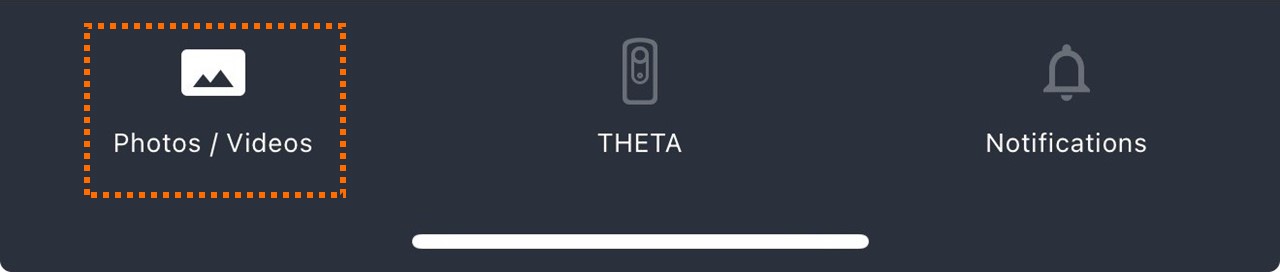
1.Tap “Photos / Videos” at the bottom of the screen.
2.Tap APP among THETA / APP / CLOUD at the top of the screen

3.Tap the thumbnail of the photos you want to view from the list of thumbnails stored on the device.
The above operation will switch to 360-degree view mode (the viewpoint can be changed by swiping the screen).
Zoom in/out, etc. can be done with each button under the viewer.
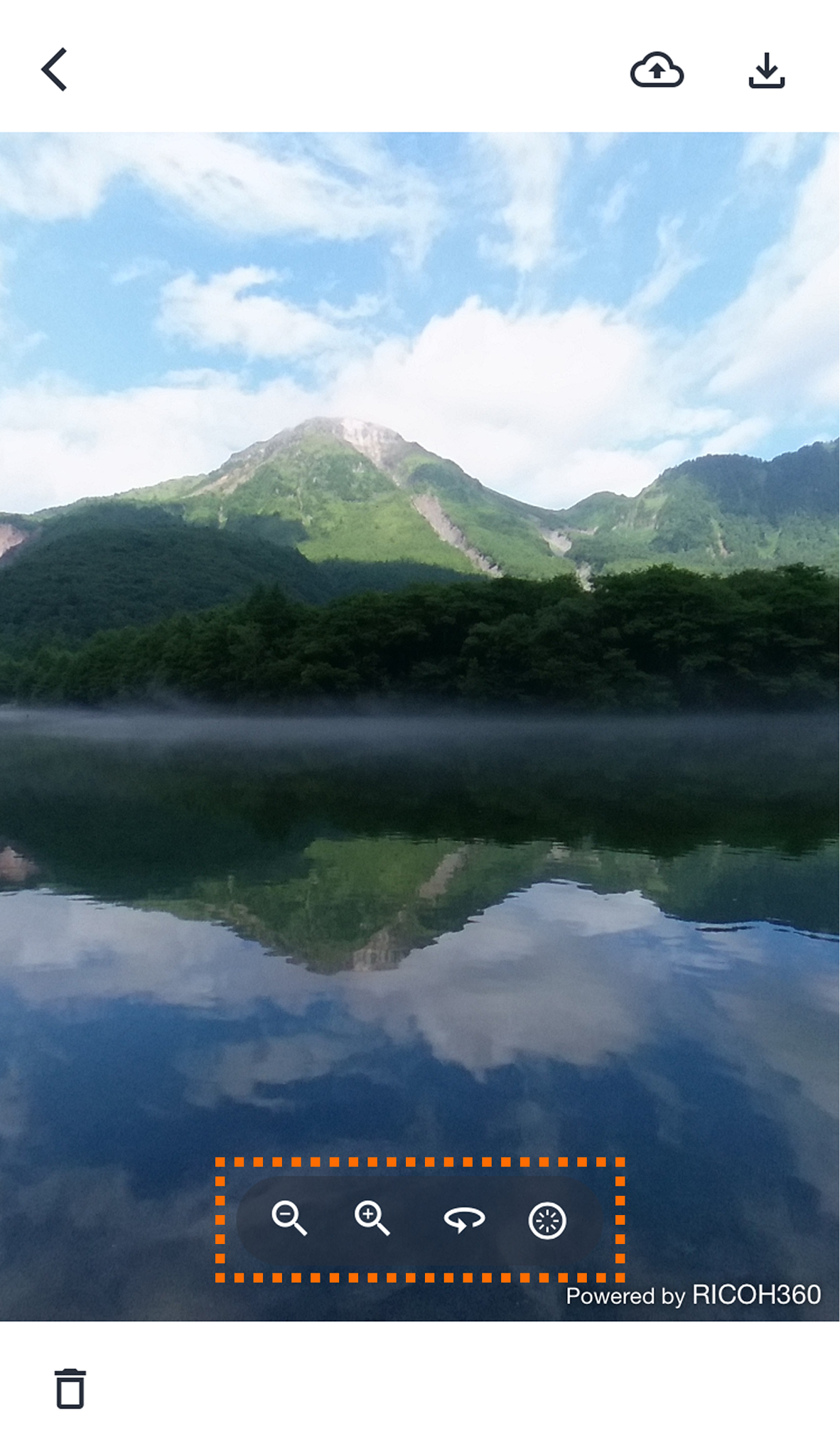
Zoom out

Zoom in

Auto Rotate (Tap to move the viewpoint to the right without swiping the screen)

Return to the initial viewpoint (the center of the lens on the side without the shutter release button on the THETA unit becomes the initial viewpoint of the photos).

When viewing Video, a slide bar and audio ON / OFF are displayed below each button.

Tap the … symbol in the lower right corner to display a toggle to turn Top/bottom correction ON or OFF for the Video being played. The default setting is Top/bottom correction ON, and the ON/OFF setting is applied to all Videos on the Device tab.
*If you download a Video to your Smartphone Library with this toggle turned on, Top/bottom correction will not be applied to the downloaded Video.
