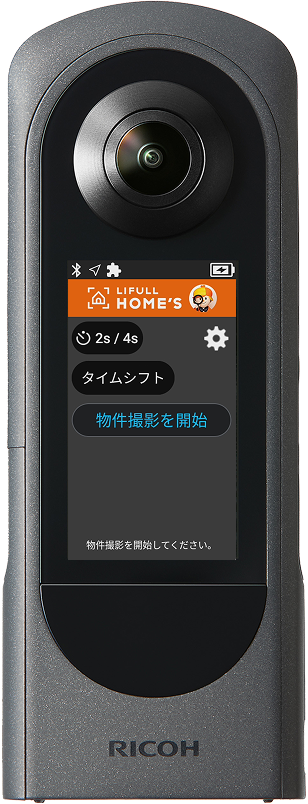
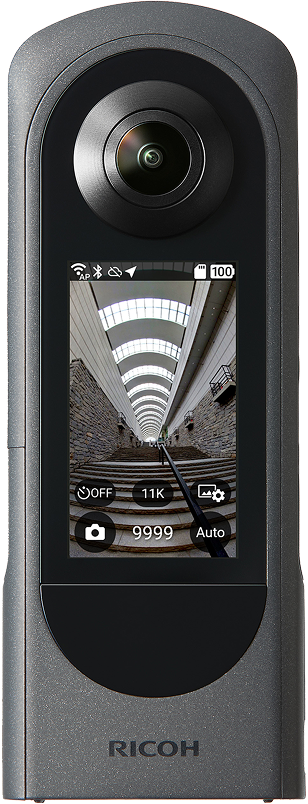
Guide for Customers Using the Property Photography Plugin

User Manual

You can check the basic operations and shooting procedures for the Property Photography Plugin.

How to Update the Camera Firmware

When a new firmware version is released, please update the camera firmware using the desktop application.

Please refer here for downloading the desktop application and its system requirements.
  1. If a memory card is inserted in the THETA, turn off the camera and then remove the memory card.
  2. Press and hold the Mode button on the side of the THETA to turn the plugin off.
    The display will change from the plugin screen to the preview screen.
  3. Launch the "RICOH THETA" desktop application.
  4. From the menu, select [File] → [Firmware Update].
  5. Follow the instructions in the desktop application and connect the camera to your computer using the included USB cable.
  6. Click [Next].
  7. Check the current version and the latest version, then click [Next].
    ・The firmware will be transferred to the camera and the update will begin.
    ・When the update is complete, the camera will restart automatically.
  8. When "Update Complete" appears on the camera display panel, disconnect the USB cable from both the camera and the computer.

How to Update the Plugin

Update instructions will be provided once the latest version of the plugin is released.

Contact Information

For questions regarding the camera or monopod, please contact us via the RICOH360 inquiry form.
For questions regarding image uploads or related services, please contact the operator of the system you are using.